
Use the Connector in Power Automate
Welcome to the Power Automate (Microsoft Flow) getting-started guide for Build a Doc. This tutorial shows you, step-by-step how to connect the Build a Doc Power Automate (Microsoft Flow) connector to your Build a Doc subscription and create your first flow that converts a Word template into a PDF with data dynamically inserted. It provides a quick, practical getting started guide where the skills learned can be applied to other Build a Doc actions.
Prerequisites
- A Build a Doc subscription and an API key (see how to generate an API key).
- An appropriate Power Automate account with permissions to create flows, and access to the connectors you will need (OneDrive / SharePoint).
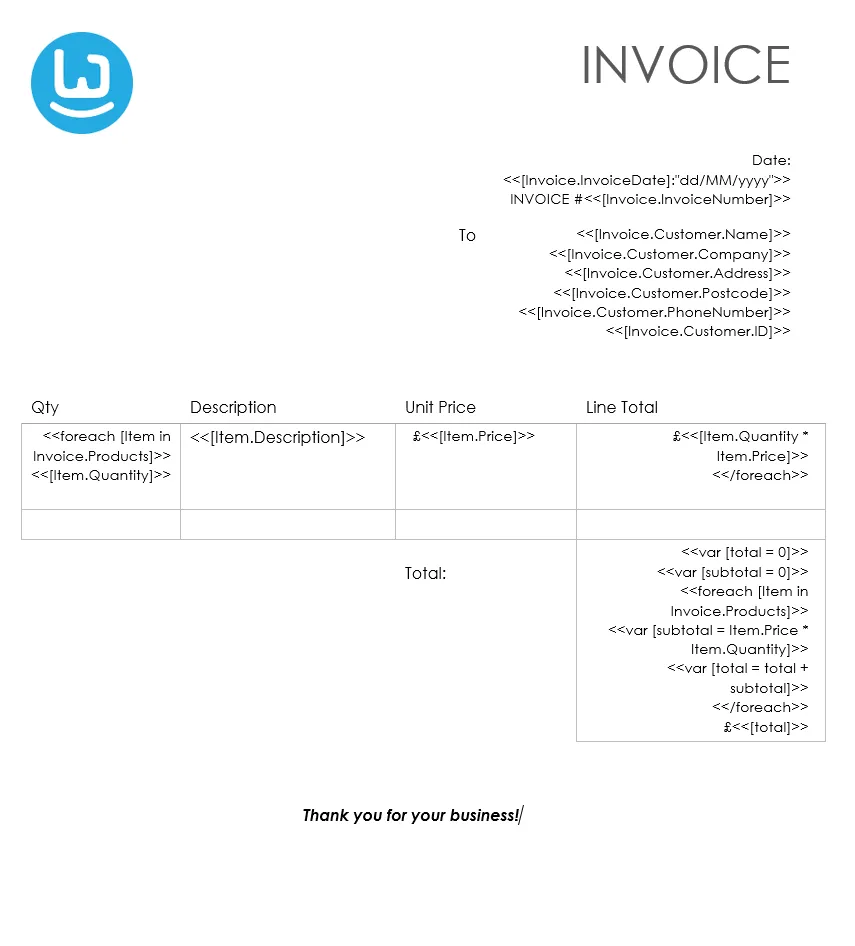
- A Word template (Invoice) stored in OneDrive (see Word Template Syntax for template syntax). The Word template used in this example can be downloaded here.
- An appropriate JSON Data source, which matches the template (see Structure JSON Data for formatting guidance). The JSON Data source used in this example can be found here.
Basic Flow Pattern
Most Build a Doc flows follow this pattern:
- Trigger - What starts the flow
- Get Template - Retrieve your template file
- Prepare Data - Gather and format your data
- Build a Doc Action - Generate the document
- Handle Output - Save or send the result
Adding a Build a Doc Action
- In your flow, click + New step
- Search for “HappyWired PowerDocs”
- Select the action you need (e.g., Convert Word Document)
- Configure the action parameters
Step-by-step
1. Create a new flow
-
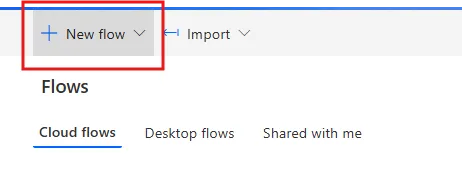
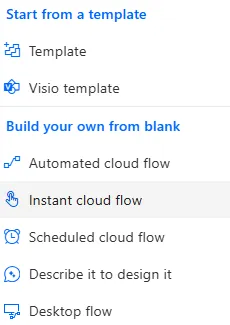
In Power Automate, click + New flow -> Instant cloud flow (or choose the trigger type you need).
-
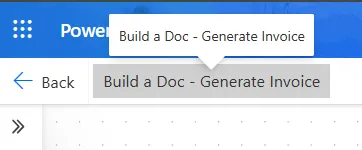
Name the flow (e.g., Build a Doc - Generate Invoice).
-
Choose Manually trigger a flow (this is the event that kicks off your flow), then Create.
2. Fetch the template file
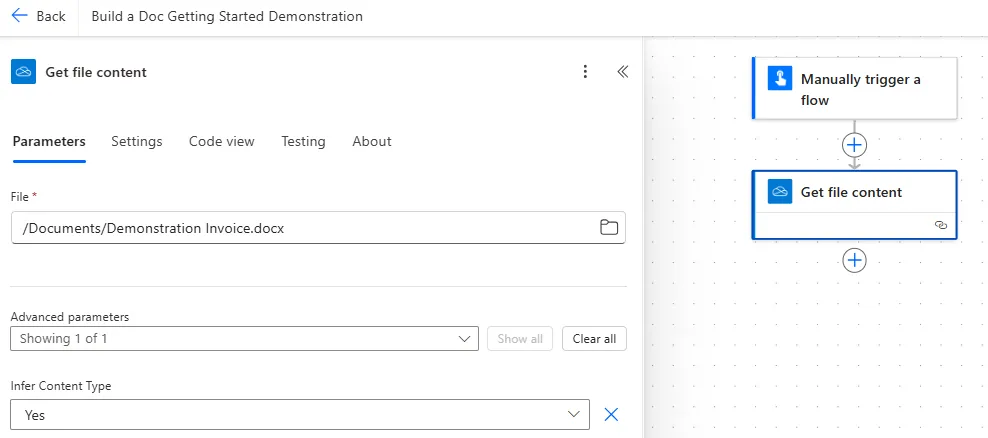
- Add OneDrive for Business -> Get file content.
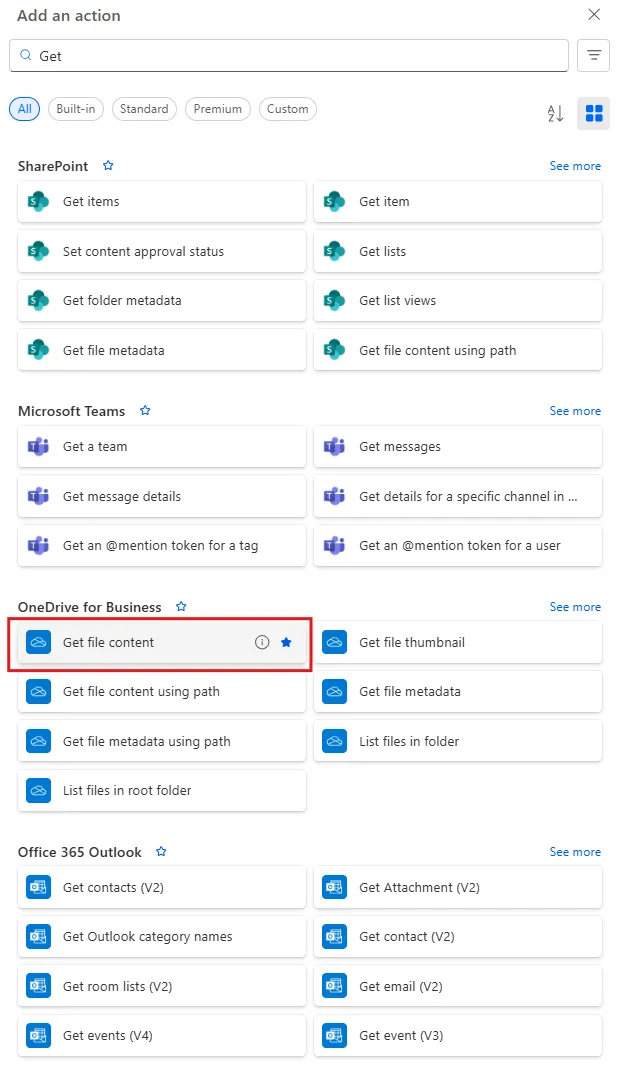
- Within the Get File Content action, select the file that you wish to use from the file path selector.
- This demonstration will use the below template:
3. Add the Build a Doc: Convert Word Document action
- Click the
+to add an action and search for the HappyWired PowerDocs connection.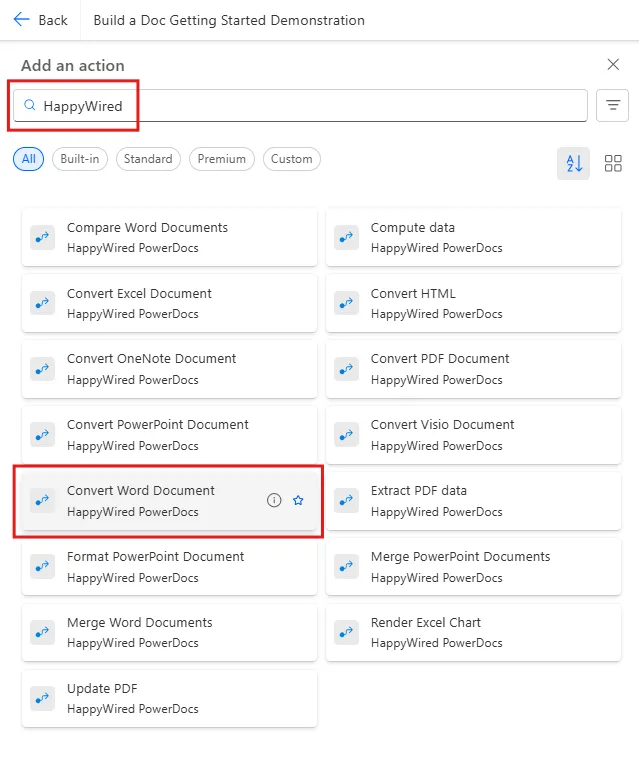
- Select Convert Word Document.
3b. Creating the connection
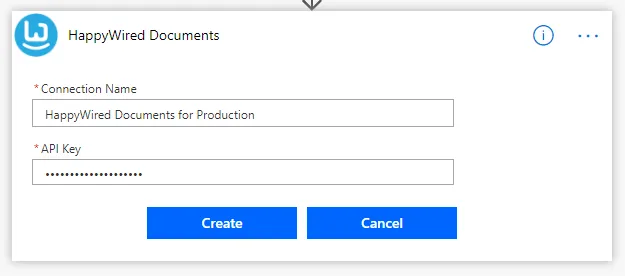
- On first use, you will be prompted to create the connection. You may name the connection anything you like.
- Paste your API key, then select Create.
4. Configuring the action
-
Document: Set to the output of the OneDrive → Get file content action.
-
Data source: Add a data source named
Invoice(or the name your template expects). -
Format:
JSON. -
Data: use the JSON object that you will insert into the template.
-
Output Format: Set to
PDF.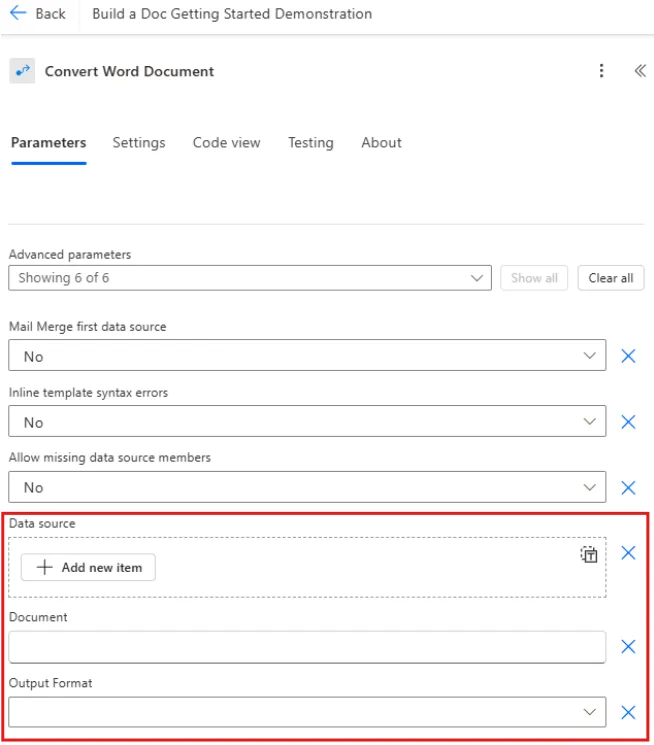
5. Save the Output (Create File)
-
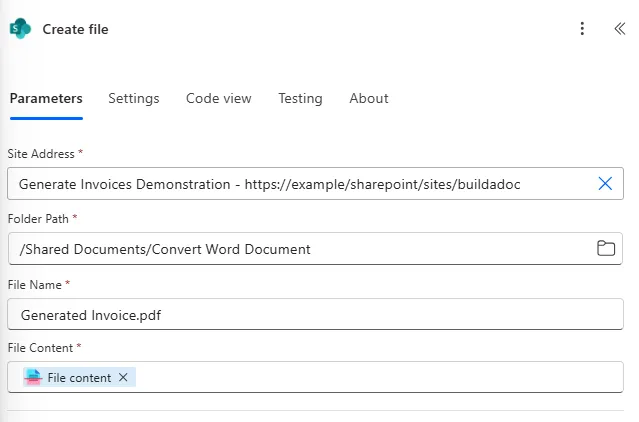
Add OneDrive for Business → Create File
-
Configure the Create file action:
- Folder Path: choose the folder where you want the PDF saved.
- File Name: set an appropriate name and include the
.pdfextension. - File Content: map the Build a Doc action’s converted output (Base64 content).
-
If the Build a Doc action succeeds and returns base64 content as intended, the output file will be correctly created in the destination.
6. Test and validate
- Save and run the flow.
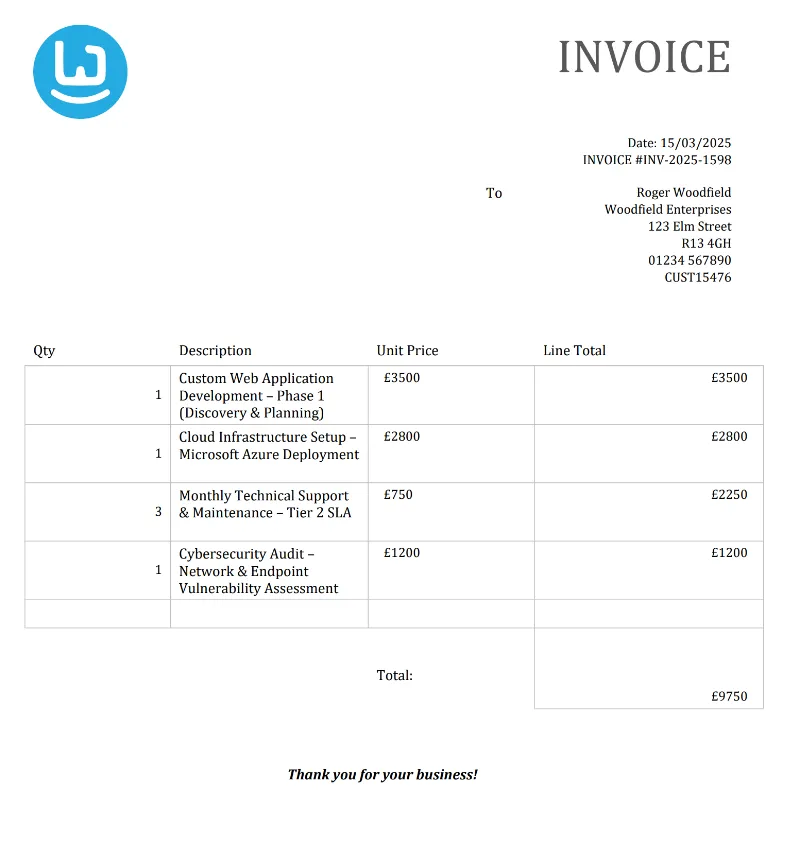
- Inspect the resulting PDF in your OneDrive folder. It should contain the data from your data source inserted into the template and look like the invoice below:
Troubleshooting
Click to expand common errors and fixes
File Not Found / Permissions
Cause:
Wrong OneDrive file ID or file path, or flow account lacks access.
Fix:
- Re-select the file in the action to ensure correct file ID/path.
- Confirm the connected OneDrive account has permission to the file.
Trigger Not Firing
Cause:
Manual trigger not activated or missing required inputs.
Fix:
- Save the flow and run it using the Power Automate button (or the expected trigger).
- Provide required manual-trigger inputs.
Blank or Missing Fields in PDF / Blank Placeholders
Cause:
JSON keys don’t match template placeholders or wrong data source name.
Fix:
- Make JSON property names exactly match template placeholders (case-sensitive).
- Validate the payload structure using Compose or Parse JSON.
No File Extension / Wrong Extension
Cause:
Create file filename is missing an extension or using the wrong type.
Fix:
- Include the correct file extension (e.g.,
.pdf) in the Create file name that matches the conversion output.
Variable Initialisation Issues
Cause:
Initialise variable contains invalid data or wrong reference.
Fix:
- Ensure
Initialise variableactions are set to valid data and the flow references that variable correctly.
Document Conversion (Word → PDF) Fails
Cause:
Invalid input file content or malformed data source.
Fix:
- Confirm the
Convert_Word_Documentaction receives the expected file content. - Validate the JSON/data source format and required fields.
File Creation Problems
Cause:
Wrong folder path or duplicate filename.
Fix:
- Use the folder picker for the destination path.
- Include the extension and ensure the filename is unique.
Error Handling / Diagnosing
Cause:
Runtime errors not yet investigated.
Fix:
- Inspect the run history for the failing run and action outputs for step-level error messages.
Quick Checklist
- Confirm the manual trigger actually fired (check Run history).
- Re-select files used in
Get File Contentactions - confirm file IDs and that files exist. - Verify OneDrive connector permissions.
- Check
Initialise Variableactions use correct and valid data. - Ensure
Convert Word Documentgets valid file content and properly formatted data source. - Use the folder picker and include the correct file extension in the
Create fileaction. - Open run history and read the failing action’s error details.
Best Practices
- Validate inputs - Use conditions to check data before processing
- Handle errors - Configure “run after” for failure scenarios
- Use variables - Store file names and paths in variables for reuse
- Test incrementally - Test each action before adding the next
- Name actions clearly - Rename actions for easier maintenance