
Automate Document Generation with Microsoft Teams
This tutorial guides you through creating a complete workflow that triggers document generation from Microsoft Teams messages. When a user posts a message containing a trigger phrase in Teams, the flow automatically retrieves a template from SharePoint, generates a document with data from a JSON source, saves it back to SharePoint, and notifies the user in Teams.
What You’ll Learn
- Create a Power Automate flow triggered by Teams messages
- Retrieve templates and data from SharePoint
- Generate documents using Build a Doc
- Save output files to SharePoint
- Post notifications back to Teams channels
Prerequisites
- A Build a Doc subscription and API key
- Power Automate account with permissions to create flows
- Access to Teams, SharePoint, and custom connectors
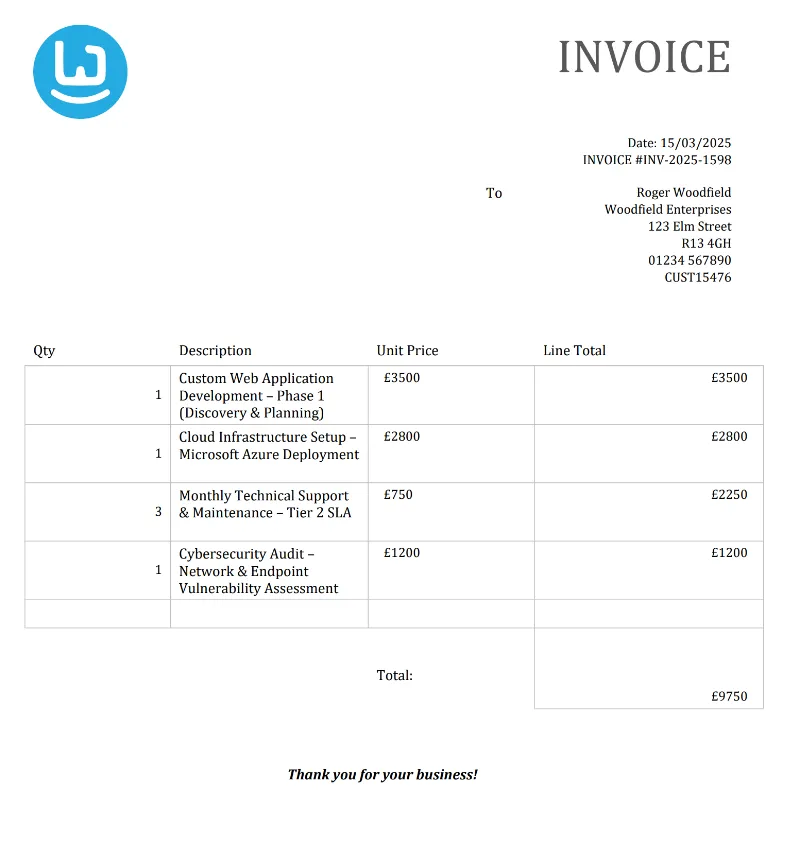
- A Word template stored in SharePoint (e.g., Invoice template)
- Corresponding JSON data source
- A Teams channel to trigger from and receive notifications
Step-by-Step Implementation
1. Create a New Flow
In Power Automate, create an Instant cloud flow:
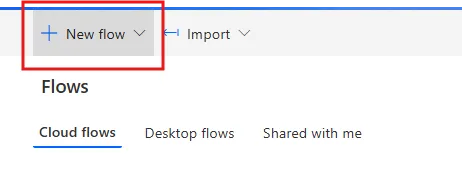
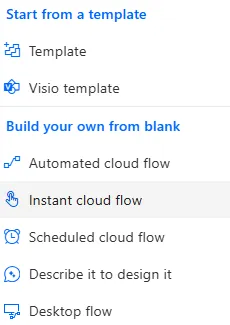
- Click + New flow → Instant cloud flow
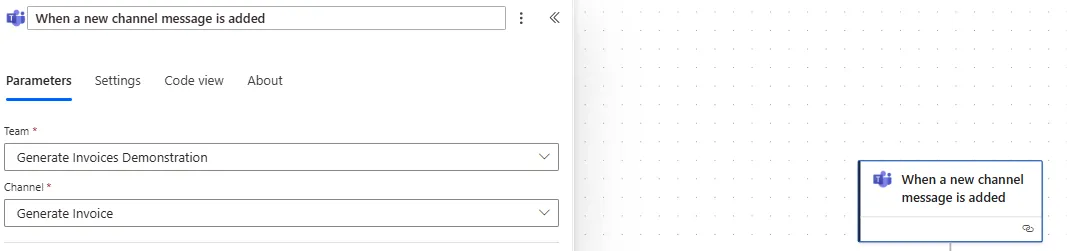
- Select When a new channel message is added as your trigger
- Click Create
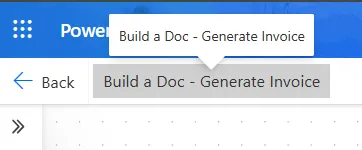
Name your flow (e.g., “Build a Doc - Generate Invoice”):
Select the Team and Channel to trigger from:
2. Initialise Variables
Add two Initialise Variable actions:
Variable 1:
- Name:
varJSONContent - Type:
String - Value: (leave empty)
Variable 2:
- Name:
varDocxContent - Type:
Object - Value: (leave empty)
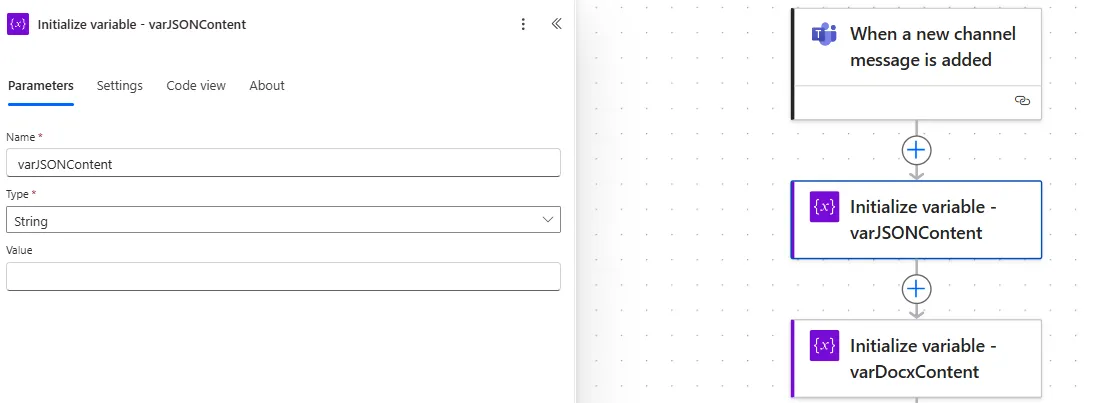
These variables will store the JSON data and Word template content retrieved from SharePoint.
3. Add Trigger Condition
Create a Condition action to check if the message contains your trigger phrase:
- Add a Condition action
- Select the
ORoperator - Configure conditions:
- First condition:
contains(toLower(coalesce(triggerOutputs()?['body/subject'], '')), 'generate invoice')is equal totrue - Second condition:
contains(toLower(coalesce(triggerOutputs()?['body/body/content'], '')), 'generate invoice')is equal totrue
- First condition:
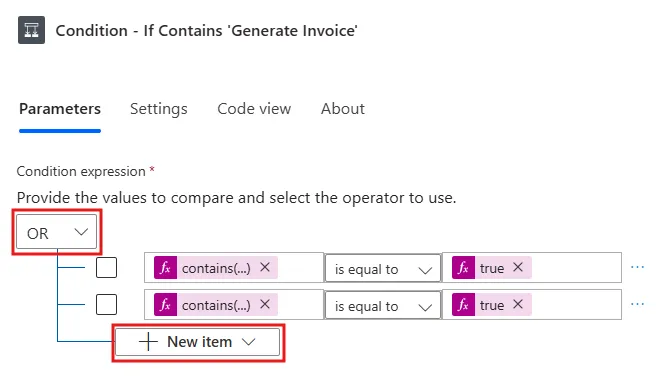
This checks both the subject and body of the Teams message for your trigger phrase (case-insensitive).
4. Get Template and Data from SharePoint
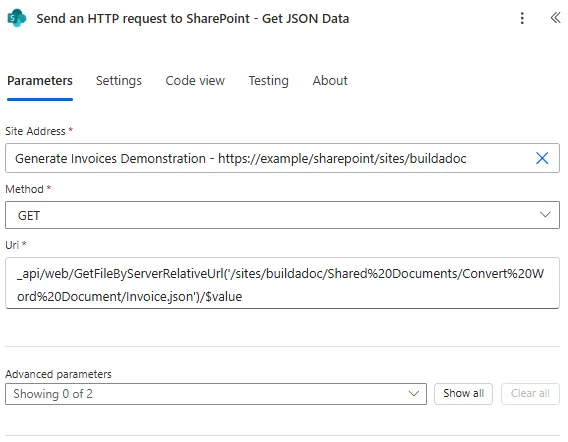
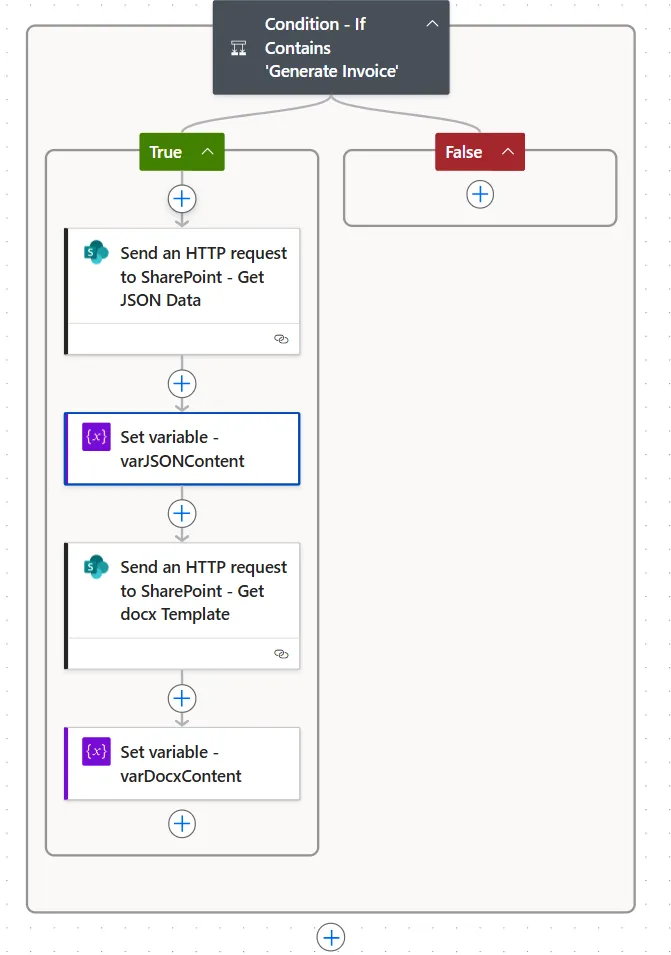
Inside the condition’s True branch, add two Send a HTTP request to SharePoint actions:
Action 1 - Get JSON Data:
- Site Address: Your SharePoint site
- Method:
GET - URI:
_api/web/GetFileByServerRelativeUrl('/sites/buildadoc/Shared%20Documents/Convert%20Word%20Document/Invoice.json')/$value
Action 2 - Get Word Template:
- Site Address: Your SharePoint site
- Method:
GET - URI:
_api/web/GetFileByServerRelativeUrl('/sites/buildadoc/Shared%20Documents/Convert%20Word%20Document/Invoice.docx')/$value
5. Set Variables
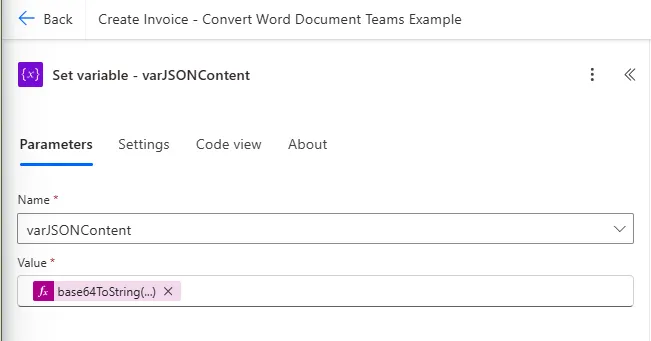
After each HTTP request, add a Set Variable action to store the content:
After Get JSON Data:
- Name:
varJSONContent - Value:
base64ToString(body('Send_an_HTTP_request_to_SharePoint_-_Get_JSON_Data')?['$content'])
After Get Word Template:
- Name:
varDocxContent - Value:
body('Send_an_HTTP_request_to_SharePoint_-_Get_docx_Template')
6. Call Build a Doc Convert Word Document Action
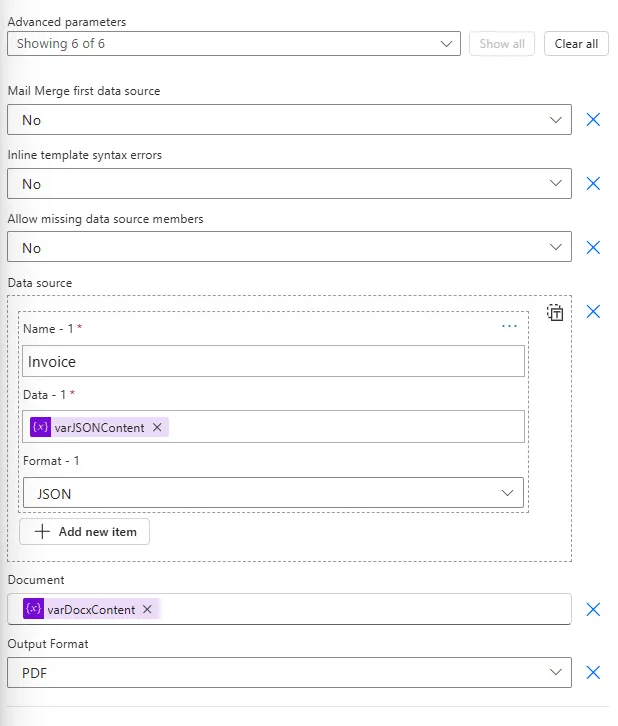
Add the HappyWired PowerDocs → Convert Word Document action:
Configuration:
- Document: Output from
varDocxContent - Data Source Name:
Invoice(or your template’s expected name) - Format:
JSON - Data: Output from
varJSONContent - Output Format:
PDF
7. Create Output File in SharePoint
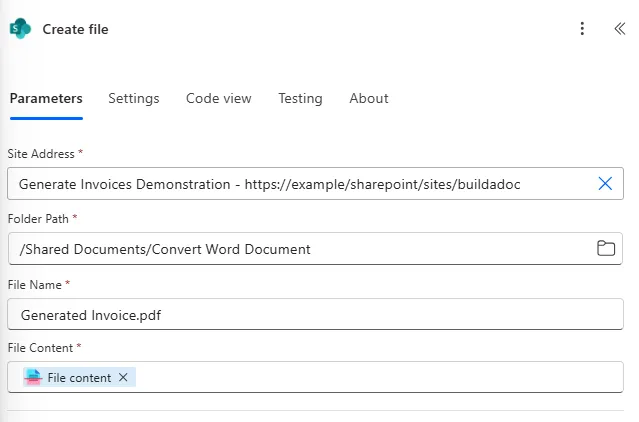
Add SharePoint → Create file:
Configuration:
- Site Address: Your SharePoint site
- Folder Path:
/Shared Documents/Generated/(or your desired folder) - File Name:
Generated Invoice.pdf - File Content: Output from Convert Word Document action
8. Post Message to Teams Channel
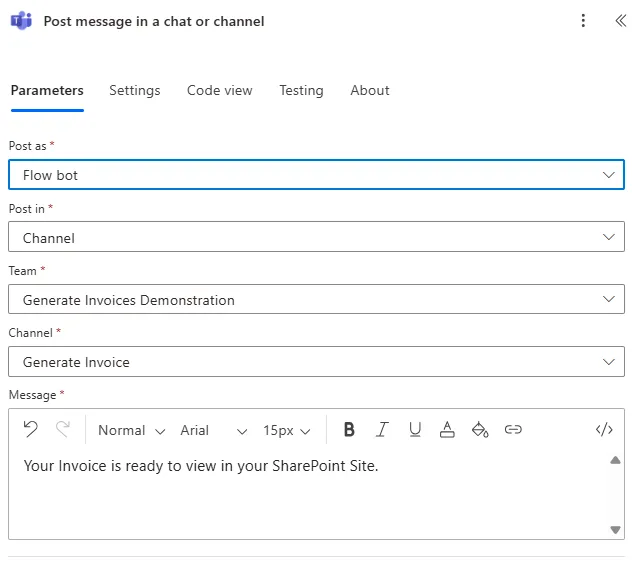
Add Teams → Post message in a chat or channel:
Configuration:
- Post as: Flow Bot
- Post In: Channel
- Team: Select your team
- Channel: Select your channel
- Message:
Your invoice has been generated and is ready! Check SharePoint for the file.
9. Test Your Flow
- Save the flow
- Go to your Teams channel
- Post a message containing “Generate Invoice”
- The flow will:
- Detect the trigger phrase
- Retrieve the template from SharePoint
- Generate the PDF with your data
- Save it back to SharePoint
- Post a confirmation message to Teams
Customization Guide
Change the Trigger Phrase
In Step 3, modify the condition logic:
contains(toLower(...), 'your phrase here')Use Dynamic File Names
In Step 7, use expressions for the file name:
Invoice_@{triggerOutputs()?['body/InvoiceNumber']}_@{formatDateTime(utcNow(), 'yyyyMMdd')}.pdfAdd Error Handling
Add a Configure run after condition to the Teams post action to notify on failures:
- Right-click the Teams post action
- Select Configure run after
- Check has failed and has timed out
- Customize the failure message
Use Multiple Templates
Add a Switch action before the Build a Doc action to select templates based on message content:
- Case "Invoice": Use Invoice template- Case "Report": Use Report template- Default: Show errorTroubleshooting
File Not Found / Permissions Error
Symptoms: Flow fails at SharePoint HTTP request steps
Solutions:
- Verify SharePoint site URLs and file paths are correct
- Confirm the flow connector has read permissions on document libraries
- Use the file picker in SharePoint actions instead of manual paths
Blank or Missing Fields in Generated Document
Symptoms: PDF generates but data fields are empty
Solutions:
- Ensure JSON property names exactly match template placeholders (case-sensitive)
- Use Compose or Parse JSON actions to inspect the payload during a test run
- Verify the data source name in Build a Doc action matches your template
Teams Message Won’t Post
Symptoms: Flow completes but no Teams notification appears
Solutions:
- Verify the channel is public (private channels require special permissions)
- Confirm the Teams connector has channel posting permissions
- Add the Flow Bot to private channels if needed
- Check the Teams action isn’t nested incorrectly within a condition
Trigger Phrase Not Detected
Symptoms: Flow trigger fires but condition evaluates to false
Solutions:
- Check condition logic for exact text matching
- Consider case sensitivity (use
toLower()for case-insensitive matching) - Check for extra whitespace in the trigger phrase
Document Conversion Fails
Symptoms: Build a Doc action returns an error
Solutions:
- Validate JSON/data source format matches template requirements
- Confirm the Convert Word Document action receives valid file content
- Check that the data source name matches your template’s expected name
- Review the Build a Doc error message in the action output
Best Practices
Security
- Never embed your Build a Doc API key in client-side code
- Use Power Automate connections for credential management
- Rotate API keys periodically
- For shared flows, create a dedicated service account connection
Performance
- Use filters on triggers to avoid unnecessary flow runs
- Consider file size limits when working with large templates
- Test with sample data before production use
Maintenance
- Document trigger phrases your team uses
- Keep templates updated in a version control folder
- Monitor flow run history for errors
- Test template changes in a development channel first